Updates
Open “Updates” in the sidebar. Click “Create update” to open the editor. In the list, you can open a record by its internal name and then click “Edit”.
Access and permissions
Viewing the list requires “View” in the “Updates” row. A new draft or tag requires “Create”; editing, publishing, and changing status require “Edit”. The account owner has all permissions.
Update statuses:
- “Draft”;
- “Active”;
- “Inactive”.
Create the content
Set the “Internal name” in the editor header. Your team sees it in the list and detail view. In the “Content” step, enter a “Public title”: visitors will see this title.
Add blocks using “Add text”, “Add image”, and “Add button group”. For an image, fill in “Image URL” and “Alt text”. You can reorder blocks using the arrow buttons.
In a button group, set the label, action, and style. “Open link” leads to the specified URL, while “Show popup” opens the selected popup. For an external page, use a link button: it does not open a popup on your website.
In “Tags”, choose an existing tag or enter a new one and press Enter.
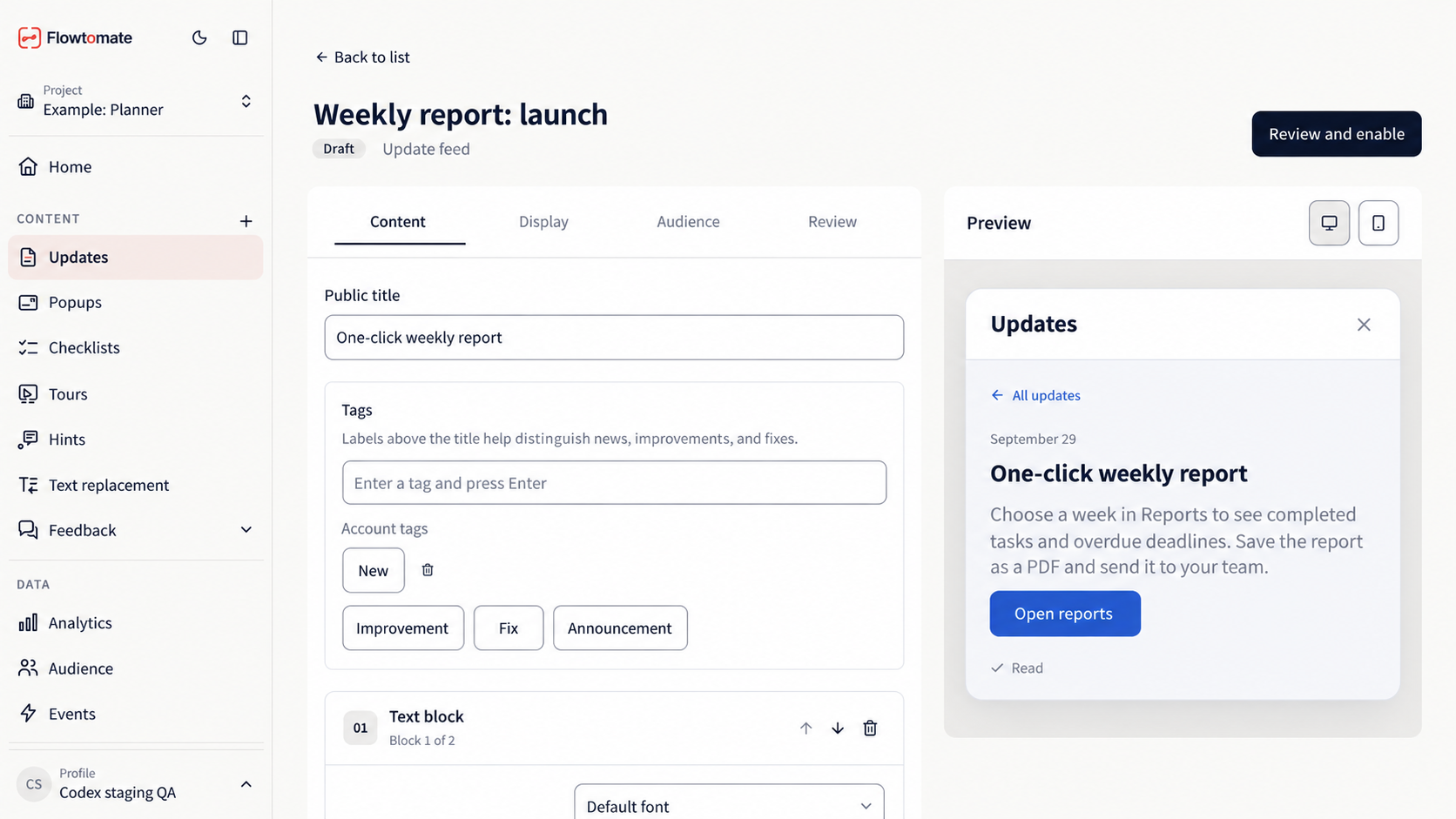
A saved draft of a sample update, reopened after reloading. It has not been activated yet.
Configure display
In the “Audience” step, an update with no rules is available to all visitors with the widget. Click “Add rule” to choose conditions for URL, device, geography, attributes, or events. If a rule uses data the widget has not received, the content will not match that visitor.
Under “Display schedule”, choose “Immediately after activation” or “On a schedule”. For a schedule, fill in “Start”, optionally “End”, and choose a “Time zone”. Enter times in the selected time zone.
In the “Review” step, Flowtomate shows the content, display schedule, audience, and preview. Check that the intended visitor and page match the conditions you set.
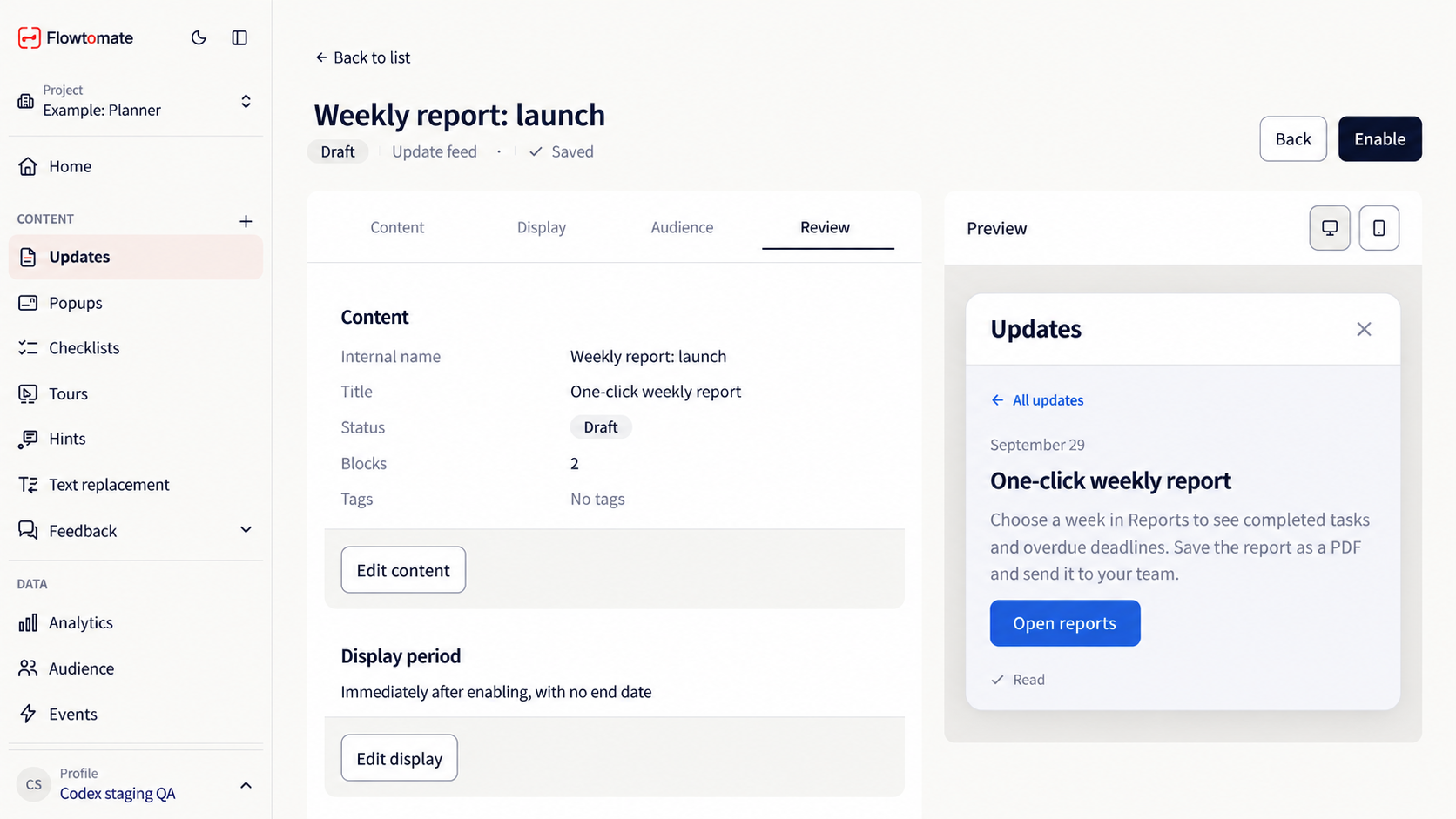
Reviewing the same draft. The preview does not mean the update is visible to visitors.
Save and activate
New, draft, and deactivated updates are saved to the server after a short pause if the required fields are complete. The header shows “Saving…”, then “Saved”. Return to the list and reopen the record to check that it was saved. If saving fails, click “Retry saving”. An invalid or incomplete schedule shows “Not saved”: correct the date, and saving will resume.
Click “Activate” in the “Review” step to show the update to visitors. In earlier steps, the same button is called “Review and activate”. If validation finds an error, a “Fix the errors” block appears. Click “Fix: …”: Flowtomate opens the relevant step and focuses the invalid field.
For an active update, make your edits and click “Save changes”. Changes are not saved automatically. If you leave with unsaved changes, Flowtomate asks you to confirm navigation. In the detail view and “Actions” menu, you can deactivate active content or activate a draft or inactive item. “Active” status alone does not guarantee display: the widget also checks the schedule and audience rules.
Configure the entry point under Widget, and shared colors and fonts under Appearance.
Related guides
- Popups — create content opened by an update button.
- Widget — configure the feed on your website.
- Troubleshooting — if an update is not displayed or cannot be published.