Hints
A hint places a marker next to a website element: it explains a field, helps users find a setting, or highlights a new feature. Each hint is linked to one element. A page can have several markers, but only one card can be open at a time.
The Flowtomate widget must be installed to display and test hints on your website. See Integration for installation details.
Create a hint in the app
- Select a project, open “Hints”, and click “Create hint”.
- Choose “Explain an element” or “Highlight a new feature”. These are starting settings; you can change the appearance and behavior.
- In “Content and appearance”, fill in “Team name” and “Hint text”. Only you and your team see the name. The card title is optional.
- In “Display and audience”, enter the “Page URL to configure” and a page rule. Click “Save draft”.
- Open that page and select an element using the extension. For manual setup, fill in “CSS selector”: it must match exactly one element.
- Test the hint on your website, configure its display conditions, and click “Publish” in the app.
Example draft: the text and layout are ready, but no website element has been selected yet. The hint needs an element and must be published before it can appear.
The list offers a search by name or page and filters for status and marker. Click a name to open the editor. The row menu lets you duplicate, disable, or delete a hint. A duplicate is created as a draft.
Viewing the list requires View permission for “Hints”; creating a hint requires Create permission; editing and publishing require Edit permission; deleting requires Delete permission.
Marker and card
| Marker | Best suited for |
|---|---|
| “Help icon” | A short explanation of a field or setting |
| “Pulsing dot” | Drawing attention to an element |
| “Text label” | A short label, such as “New” |
You can turn off “Show card” for a text label. The label then remains a caption with no action. It supports always-on display and date limits.
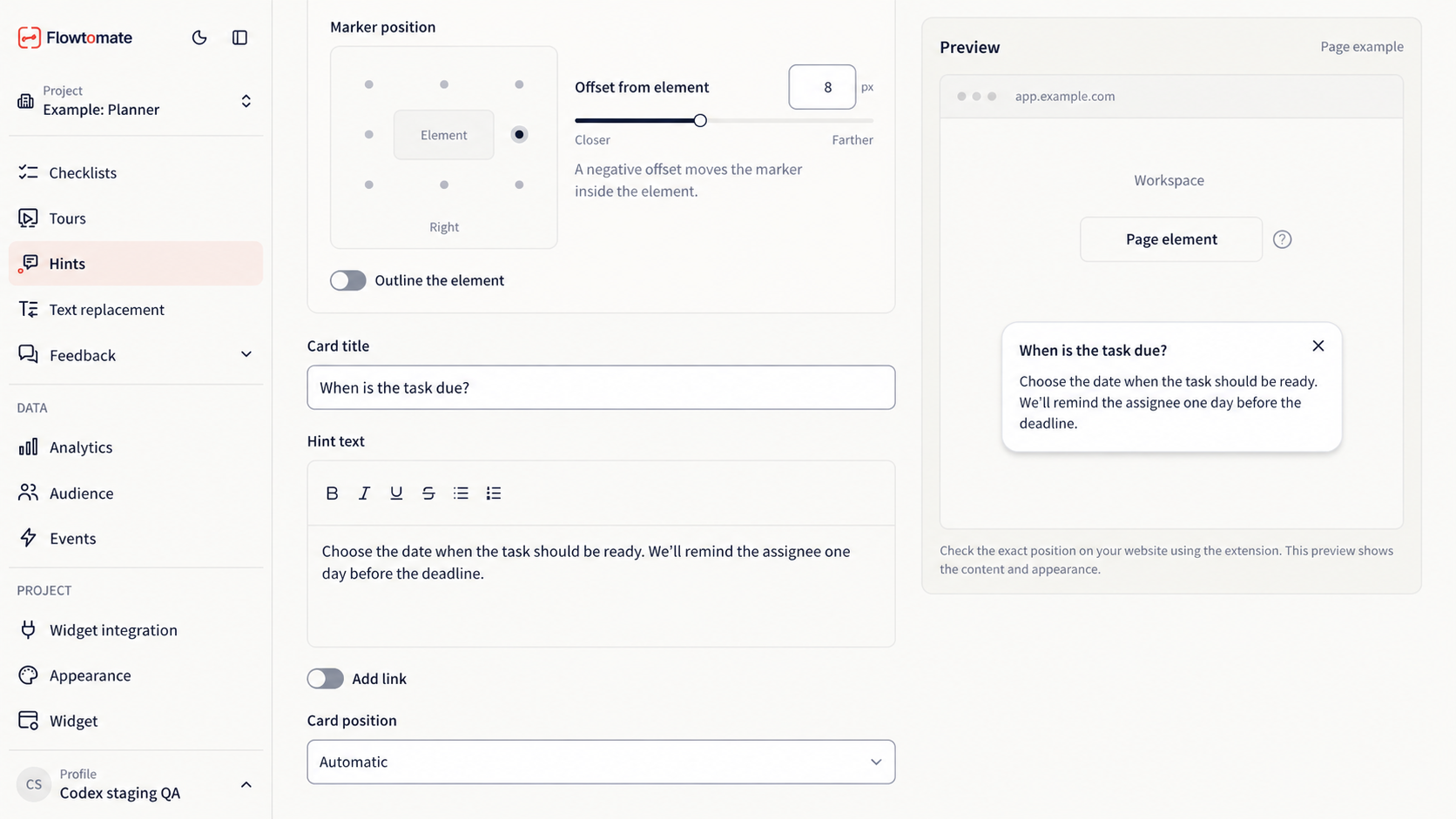
The help icon is a small question mark inside a thin circle. The “Use accent color” switch adds a color accent. The pulsing dot has a thin border and a soft pulse. Each marker type can be placed on any of the element's four sides or four corners.
A text label is a small badge next to the element. In “Marker position”, click the desired point around the sample element. The name of the selected side or corner appears below the diagram. Short text such as “New” keeps the focus on the element itself.
Set “Offset from element” with the slider or enter a number from −32 to 64 px. Lower values move the marker closer; higher values move it farther away. A negative value moves it inside the element. The preview shows the result immediately. Changing the marker type preserves its position and offset.
Choose a preset color or open the palette to select your own shade. “Project color” restores the project's design color. “Outline the element itself” adds a separate outline; it does not prevent users from clicking the website element.
You can add formatted text and one link to the card. Both the page URL and the link require a full HTTP(S) URL. The card position can be automatic or set manually; on the website, the widget keeps it within the browser window.
The app preview shows a sample page. Use the extension on your own website to check the exact position and behavior.
Select an element with the Chrome extension
- Open the required website page, sign in to the extension, and select the same account and project as in the app.
- Select “Hints” in the section switcher. “On this page” filters hints by their page rules; “All” opens the entire project list.
- Open a saved draft or create a hint with “Explain an element” or “Highlight something new”.
- Click “Select element”, then click an element on the page. Escape cancels selection. Check the name and selector; fallback selectors are available under “Page rule and selector”.
- Click “Test on page”. Try hovering, keyboard navigation, touch, and scrolling. “Turn off preview” ends the test. Preview does not affect visitor state or statistics.
- Click “Save draft” or “Save and open in app”.
The extension keeps unsaved changes locally and restores them when reopened. Configure the audience, schedule, and publication in the app. After saving through the extension, reopen the hint in the app to load the latest version.
Opening and repeat display
In “Display and audience” → “Opening and frequency”, choose how the card opens. Hover also works with keyboard focus; on touch screens, a tap opens the card. A card with a link or a “Do not show again” button opens on click.
Frequency determines when the marker disappears:
- “Always” — the marker remains available on a matching page.
- “Until the card is opened” — after the first opening, the visitor can finish reading the card; the marker disappears when the card closes.
- Until explicitly dismissed — the marker disappears after “Do not show again” is clicked. Closing the card normally, pressing Escape, or clicking outside it leaves the marker in place.
Dismissal applies to the visitor and the published hint version. Publishing a new version allows it to appear again. Saving a draft does not reset dismissal.
Page, audience, and schedule
Choose “Exact path”, “Path starts with”, or “Full URL”. For example, the exact path /reports matches one page, while the path prefix /reports also matches its child pages. URL parameters and the #anchor are not part of the page rule; configure parameter conditions in the audience settings.
The hint works on the website specified in “Page URL to configure”: the HTTP(S) scheme, domain, and port must match. The same path on a different subdomain does not match.
Audience conditions can limit display by page, device, geography, attributes, and events. All added conditions must be met. For an event rule, select an active project event; see Events for collection details.
A full-URL audience condition checks parameters and the #anchor directly on the visitor's page. The hint request sends the URL without them; allowed parameters for other conditions are sent separately. The server continues to check the other audience conditions.
In “Schedule”, choose “Immediately after activation” or “On a schedule”. For a schedule, set a start date, an end date, or both, and a time zone. The end must be after the start.
Drafts, publication, and conflicts
“Save draft” saves changes for your team. The published text, element, audience, and schedule continue to work unchanged. “Has changes” indicates that the draft differs from the published version.
“Publish” or “Publish changes” checks the settings and creates a new published version. “Disable” in the list menu stops display. To enable the hint again, open it and publish it.
If the hint has changed in another editor, Flowtomate prevents it from being overwritten and keeps your changes in the open editor. In the app, “Load latest version” replaces them after confirmation. Copy any text you need before replacing them. In the extension, you can first click “Download local draft”, then “Load server version”.
Statistics and visitor consent
The list shows reach and opens; the “Statistics” tab also shows link clicks and explicit dismissals. Reach counts users; opens, clicks, and dismissals count events over the available history. The same version's marker reappearing within a session does not create another display event. Preview is excluded. A dash means there is no data or it is unavailable.
If analytics collection is off or the visitor has not yet given the required consent, general hints can appear without recording events. Conditions requiring unavailable visitor data are not met. Dismissal is stored only in the current widget's memory; the hint may reappear after the page reloads. Consent given later does not send past actions retroactively.
If a hint does not appear
Check publication, installation of the correct project's widget, the page rule, audience, and dates. Close any tour, popup, widget window, or feedback form: they temporarily hide hints.
The element must be visible and uniquely matched by its selector. If it has not appeared yet, is hidden, is outside the visible area, or the selector matches several elements, the marker is not shown. The widget repeats its search when the page changes. A stable element attribute is more reliable than a temporary class.
Elements inside iframe and Shadow DOM are not supported. After navigation to another page, hints are checked again. See Troubleshooting for other reasons why a hint may not appear.