Events
“Events” collects actions by website visitors. Custom events can be used in content display rules and other available settings. Viewing the section requires “View” permission for “Events”; creating an event requires “Create”.
Collection also requires the widget to be installed and “Collect visitor data” to be enabled in Integration. “When to collect data” determines when the widget starts collection.
System events
Flowtomate creates system events. They record sessions and page views, as well as displays, clicks, completions, and other content actions. They appear in the list under the “System only” filter and are marked “System” in the event card.
Custom events
Custom events are marked “Custom” in the interface. Click “Create event”, fill in “API name”, “Event name”, and “Event description”, then click “Create event” again.

Example form with a synthetic event. Choose the API name before creation, because it cannot be changed later.
For example, enter report_created in “API name”, “Report created” in “Event name”, and briefly describe the action. After creation, Flowtomate shows a card with the status “Active”. The API name cannot be changed, so choose a permanent name before creating the event.
In “Show”, choose “Custom only”, “System only”, or “All events”. You can find an event by name, description, or API name. Open its card to see “Total”, values for recent periods, “Linked elements”, and “Recent events”. For an event collected through the extension, “Turn off collection” stops collection for the selected element, and “Turn on collection” resumes it.
To send an event from your website code, use the events reference: it describes the name, allowed properties, and the effect of consent.
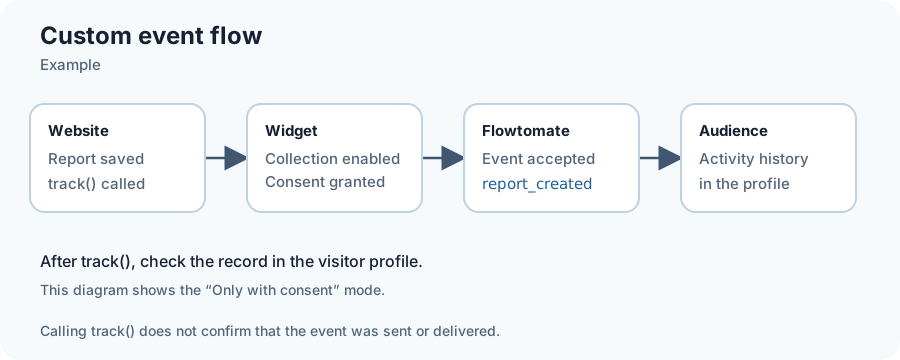
The diagram follows an event from the website to the visitor profile. Check for the record in “Audience”: calling a method alone does not confirm delivery.
Where to use an event
Once an event has been received, use it to target content based on the visitor's activity history, to start or advance product tours, and to complete a checklist item “After an event”.
Do not change the meaning of an event that is already in use: display conditions, tours, and checklists may depend on it. If the website action changes, create a new event and update those settings.
If an event is missing or an error occurs
If you see “Nothing found”, change the search or the “Show” filter. For “Could not load events” or “Could not create the event”, check your event viewing or creation permissions. If an event is not received, check the widget, “Collect visitor data”, and “When to collect data” in Integration.
Related articles
- Audience — check the visitor's profile and history.
- Integration — configure audience and event collection.
- Troubleshooting — if an event is not received.